
Wi-Fi setup
Teslasuit devices (TESLASUIT or TESLAGLOVE) connect to the PC wirelessly over Wi-Fi, managed entirely within Control Center. There are two ways to establish that connection: a direct connection between the device and the PC, or forwarding the device to a Wi-Fi access point. This page explains both, when to use each, and how to set them up.
Although the original procedures are illustrated with TESLASUIT, the Wi-Fi connection workflow is exactly the same for TESLAGLOVE.
Connection modes#
Direct connection#
A direct connection is a 1-to-1 link between a single Teslasuit device and the PC — and, more specifically, a single physical Wi-Fi adapter. A typical physical Wi-Fi adapter can serve only one connection at a time, so in this mode the adapter is fully occupied by one device. This is the default mode: a device is automatically connected directly to the PC right after pairing completes.
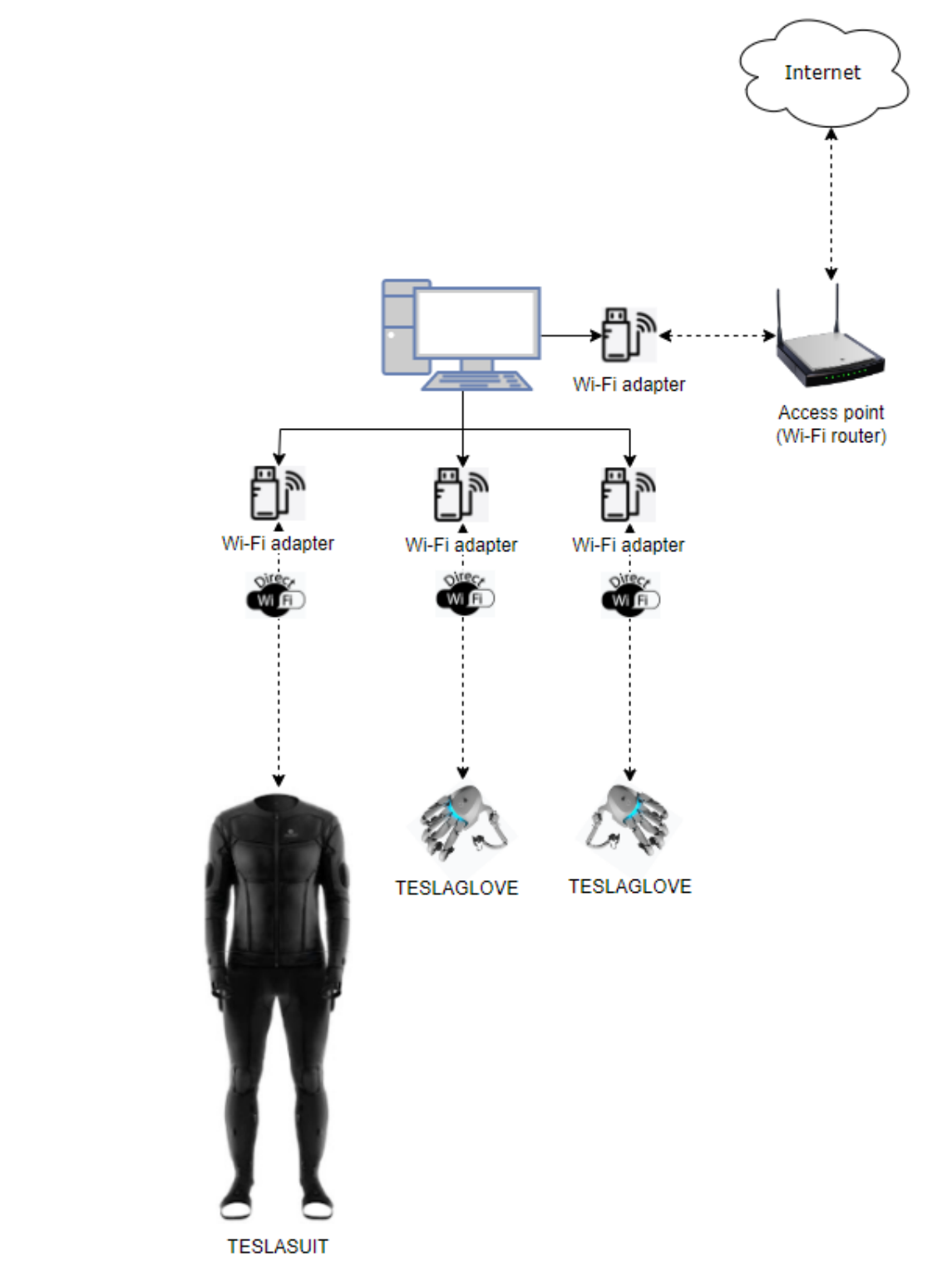
The trade-off is that you need a dedicated adapter for each device you want to use simultaneously, and the device must stay within range of that adapter.
Access-point forwarding#
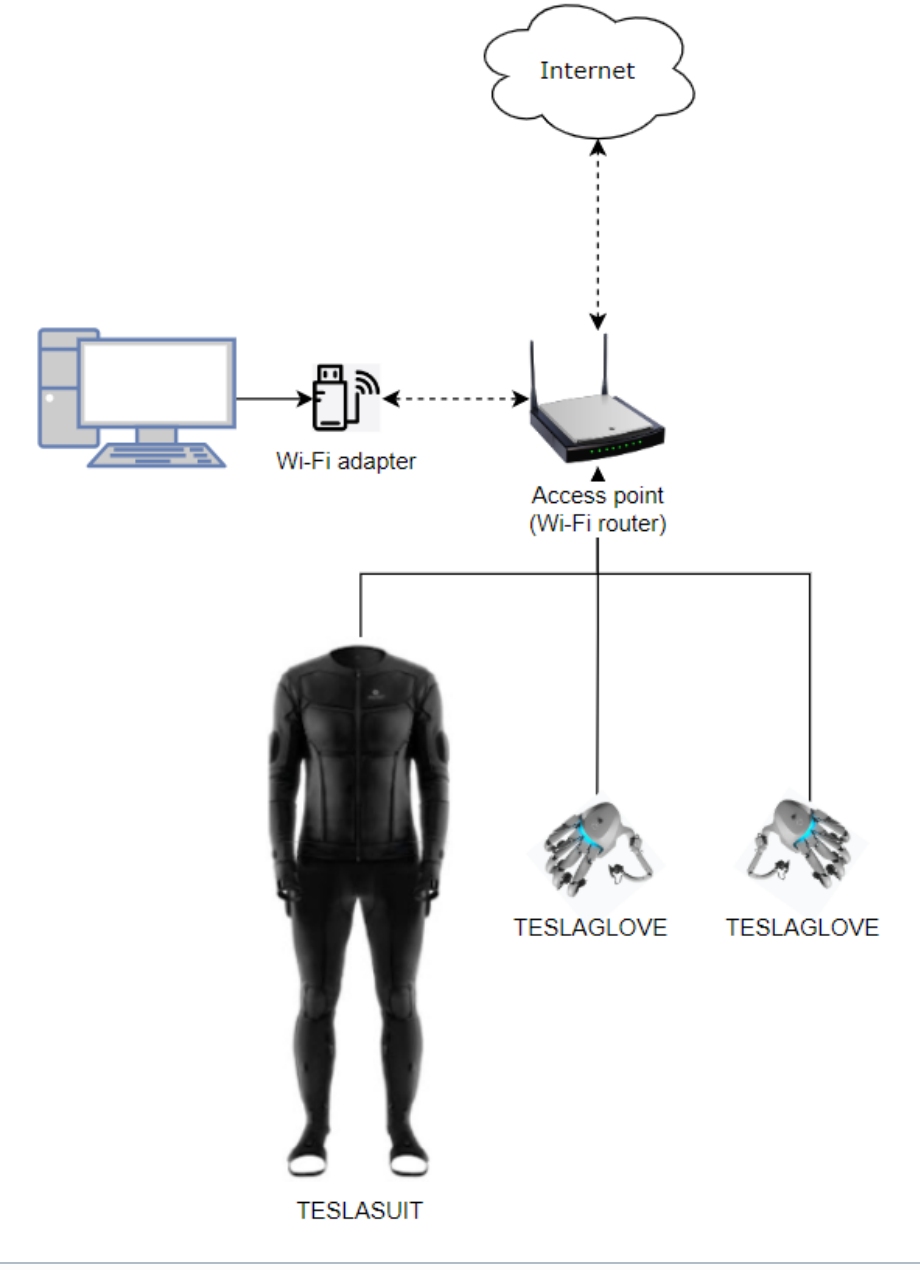
The alternative is to forward the device to a Wi-Fi access point and connect the PC to that same access point. Because a single access point can serve any number of forwarded devices, this makes it easier to control multiple devices from one PC through a single physical Wi-Fi adapter.
In most cases, connecting through an access point also makes operation faster and more stable than the default direct connection, because a Wi-Fi router acting as the access point is usually better at balancing network traffic.
Setting up a direct connection#
Before connecting a device directly to your PC:
- Launch Control Center and authorize with your account (see Control Center - Launch & Authorization).
- Pair the device (see Control Center - Pairing & Connection). The device is connected directly to the PC automatically as soon as pairing completes.
If a device is paired and powered up but not yet connected, connect it from the main window:
- Select the Wi-Fi adapter to use for the direct connection, using the adapter control upper-right.
- Press the connect button on that device's card in MY DEVICES.
Forwarding a device to an access point#
This section covers the high-level steps. For full detail, see the tutorial Teslasuit device forwarding to Access Point.
- Make sure the device is directly connected to the PC via the desired Wi-Fi adapter. (For example, adapter "WiFi 5" might currently be used to directly connect a device named "Teslasuit Man XL 00000498".)
- On the device's card, follow the "Forward to Access point" link.
- Select the access point to connect to and enter its password.
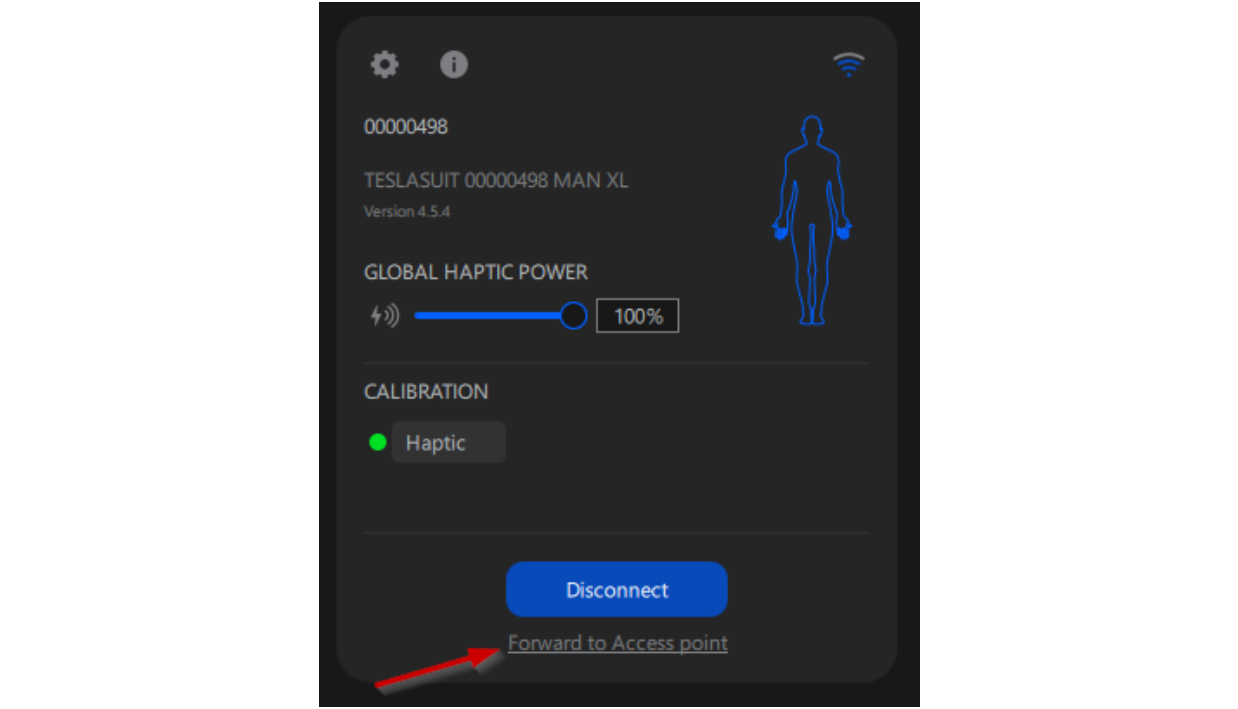
What happens next depends on the "Automatic connect to AP" checkbox:
- If you check "Automatic connect to AP":
- The device is forwarded and connected to the access point.
- The current Wi-Fi adapter is connected to that same access point.
- The connection between the PC and the device (via the access point) is established automatically.
- If you leave "Automatic connect to AP" unchecked:
- The device is forwarded but not connected to the access point.
- The device is shown in neither AVAILABLE DEVICES nor MY DEVICES.
- You must manually connect the Wi-Fi adapter to the access point to see the device in MY DEVICES.
- Once the adapter is connected to the access point, the previously forwarded device appears in MY DEVICES.
- You can then manually connect the device from MY DEVICES to operate with it via the access point.
By repeating the routine pair → direct connection → forward to access point, you can add any number of devices to the same access point and then connect them all to the same PC through a single physical Wi-Fi adapter.
Choosing between the modes#
Both options remain available at any time:
- Direct connection (the default) is a simple 1-to-1 link that fully occupies a single Wi-Fi adapter, so you need a dedicated adapter for each device.
- Access-point forwarding lets multiple devices share the same Wi-Fi adapter + access point combination, and in most cases makes the connection itself faster and more stable.
Warning
In direct mode, each device needs its own dedicated adapter — see Control Center - Known Limitations.