
Interface overview
This page introduces the visual layout of Control Center and the main interface elements you will use throughout setup. The interface is built around two windows — a sign-in window and the main window — together with a small set of always-available menus along the top.
Sign-in window#
When Control Center launches, the authorization window appears first. It presents the available ways to enter the Teslasuit system — online log-in or sign-up, an offline mode, and a demo mode. The sign-in flow and the trade-offs between these modes are described in Control Center - Launch & Authorization.
Main window#
After authorization, the main window opens. It is organized into two device lists:
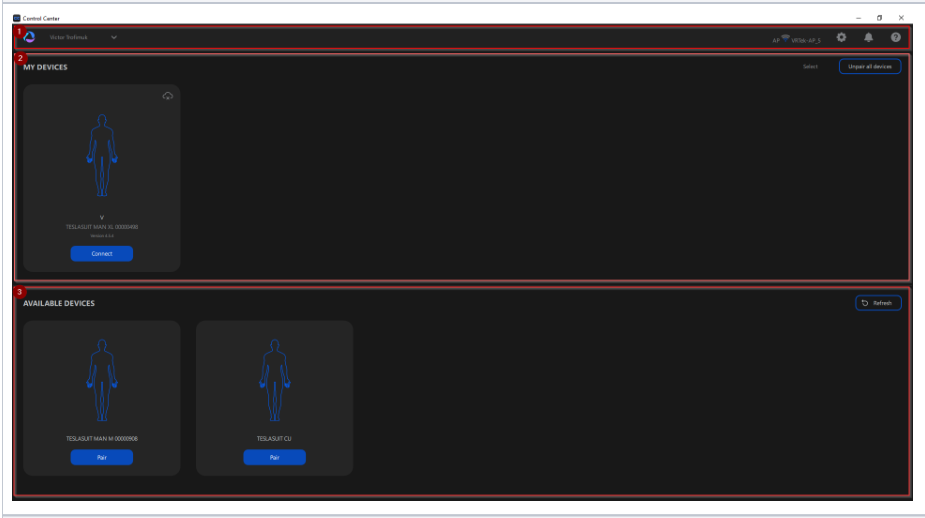
The main window has three regions:
- Top menu bar — the account/authorization panel, Wi-Fi adapter, settings, notifications, and help menus (described below).
- MY DEVICES — all devices previously paired to this PC and account, whether or not they are currently connected. Each device is shown as a card.
- AVAILABLE DEVICES — devices discovered nearby (within range of the selected Wi-Fi adapter) that have not yet been paired to your PC and account. A Refresh control re-runs discovery if the device you expect is not listed.
Device cards#
Cards in MY DEVICES appear in several states that reflect the device's power and connection status:
- Paired, powered on, not connected — available to connect.
- Paired, powered on, connected — the working state, from which calibration, reporting, and updates are reachable.
- Paired, powered off — listed but not actionable until powered on.
A card exposes the controls you need for that device: a connect / disconnect button, an info button that opens the device report, a gear icon for device settings (including firmware updates), and access to calibration for each supported system. The MY DEVICES header also offers unpairing controls, including a selection mode for unpairing one or more devices at once (see Control Center - Pairing & Connection).
Cards in AVAILABLE DEVICES offer a Pair action, alongside the Refresh devices button for the section.
System settings, Wi-Fi, notifications, and help#
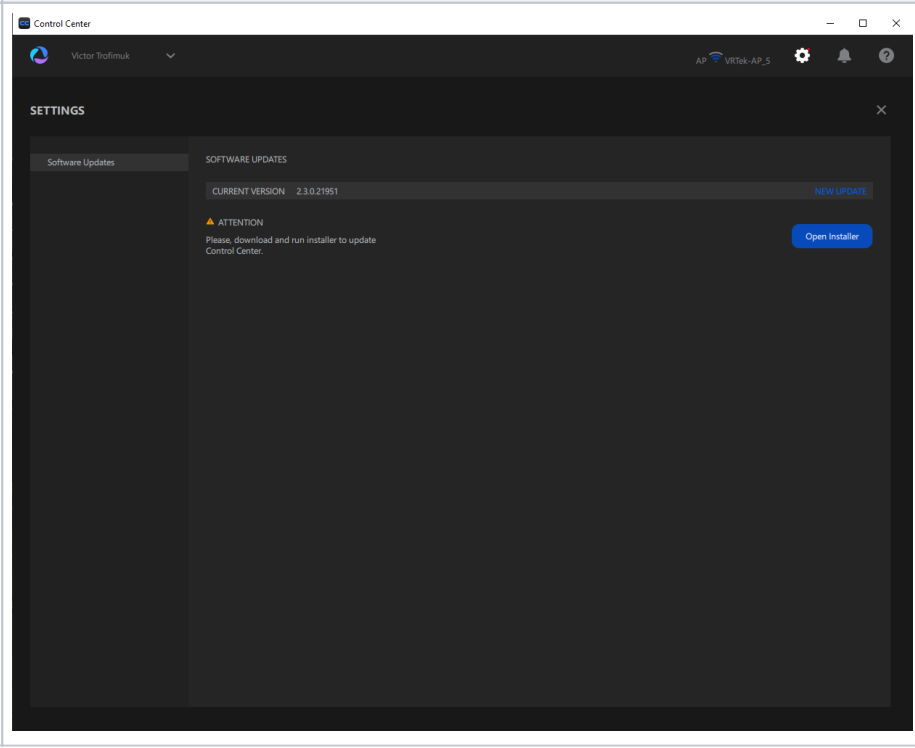
The top of the window hosts the system-level menus, each of which can be collapsed or expanded:
- Teslasuit account / authorization panel — reflects your current mode (online, offline, or demo).
- Wi-Fi adapter options — select the physical Wi-Fi adapter used for direct connection with a device. See Control Center - Wi-Fi Setup.
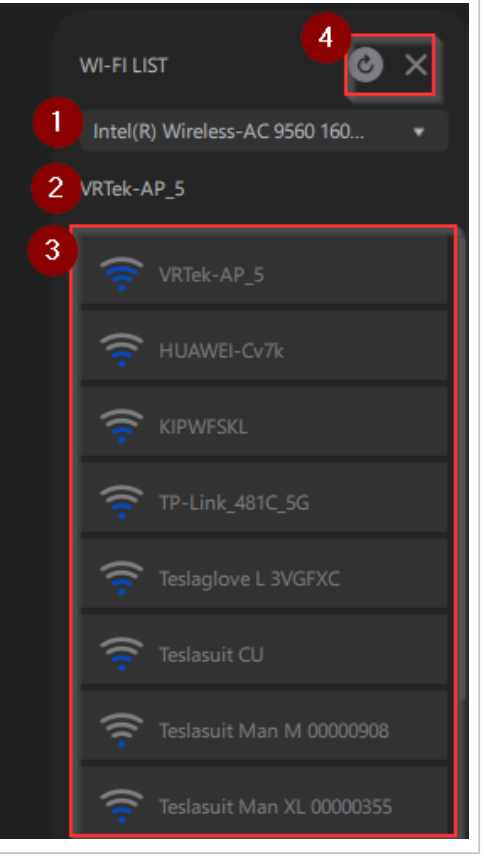
The WI-FI LIST menu has four parts:
- Adapter dropdown — select the physical Wi-Fi adapter to use.
- Current access point — the access point the adapter is connected to.
- Networks list — the discovered Wi-Fi networks and Teslasuit devices.
- Refresh / close — re-scan the list or close the menu.
- Application and devices settings — application preferences, including logging level and event-log consent.
- Notifications menu — in-app notifications, including firmware and Software Bundle update prompts.
- Help menu — access to help resources.