
Launch, authorization & event log
Before you can use any of the service features of Control Center, you must manually launch the Windows desktop application and complete authorization in the Teslasuit system. Authorization is required for security purposes. This page covers launching the app, the three authorization options, and the event-log consent that governs analytics collection.
Launching Control Center#
Control Center is installed as part of the Software Bundle (see Control Center - Requirements). You can launch it in either of two ways:
- From the desktop shortcut, which the Software Bundle installer creates automatically.
- By running the executable
control_center.exedirectly from the installation directory.
By default the installation directory is:
C:\Program Files\Teslasuit\Studio
Authorization#
Right after launch, the authorization window appears with three options:
- Log in / Sign up (online). These buttons open a dedicated web page with an online form, where you can enter the Teslasuit system using an existing account (Teslasuit, or a linked provider — GitHub, LinkedIn, Facebook, or Google) or register a brand-new Teslasuit account. Online mode enables remote features, data synchronization, security checks, notifications, and software and firmware updates.
- Go to offline mode. A local-only mode that does not reach Teslasuit cloud services for authorization or synchronization. It is useful when internet access is missing or unstable.
- Demo. Lets you explore the application without a connected device.
Once you are in, the account panel at the top of the main window reflects your current mode:
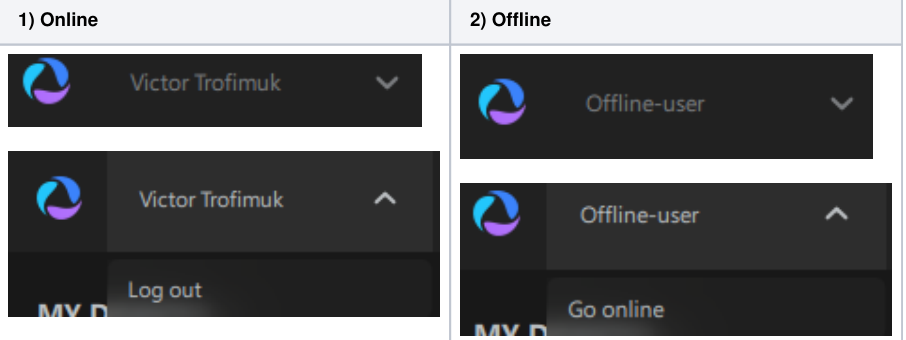
- Online — shows your Teslasuit account name, with Log out in the dropdown.
- Offline — shows "Offline-user", with Go online in the dropdown.
Offline mode limitations
In offline mode, remote features, data synchronization, security checks, notifications, and software and firmware updates may be unavailable. Offline mode does not require credentials, but it creates an "anonymous account" in the background. As a result, to use a device online under your Teslasuit account, you must first unpair it in offline mode, then pair it again after signing in online.
After launching Control Center and authorizing — online or offline — you are ready to operate Teslasuit devices. Continue with Control Center - Wi-Fi Setup and Control Center - Pairing & Connection.
Event log & consent#
From Software Bundle version 2.5.0, Control Center can record additional usage data and your actions within the system, for internal statistics and to improve customer support. This recording happens only after your explicit consent, given either in Control Center or on the Developer Portal. You can express your decision initially and change it later at any time.
Whatever you decide, no personal information is collected or stored, and all other statistical data is reliably encrypted. The full terms are in the online Privacy Policy. Statistics are tied to your user account, not to a particular Control Center instance or PC, so you must launch Control Center and authorize with your account for the choice to take effect.
Consent states#
There are three scenarios, governed by the PRIVACY POLICY AGREEMENT consent:
- Consent not yet expressed. A PRIVACY POLICY AGREEMENT modal appears with three choices: Agree to share statistics (the consent is recorded in your User Profile and can be changed later), Disagree (the refusal is recorded and behaves like software versions prior to 2.5.0), or a link to review the text of consent on the up-to-date web version of the privacy policy.
- Already disagreed — the modal no longer appears on startup.
- Already agreed — the modal no longer appears on startup.
Changing your decision#
Once a decision is made, you can reverse it at any time in one of two places:
- In Control Center — go to Settings → Event log and select your preference.
- On the Developer Portal — go to developer.teslasuit.io, open Profile (upper-right), and navigate to Consent Settings, which shows the current data-collection status, a reference to the full license agreement, and a button to change your decision.
Changes to the event-logging process take effect only in the next session, after a Control Center restart.