
Updates management
Teslasuit devices are operated through software and services that need to be kept up to date. There are two kinds of update: device firmware and the Software Bundle (Control Center, Studio, and the APIs). Firmware can be updated only via Control Center; the Software Bundle can be updated either from Control Center or by downloading the newest installer directly from the Developer Portal.
Teslasuit engineers continually release updates to introduce new functionality, fix issues, and improve performance and stability, so it is strongly recommended to always update firmware and software to the latest available version.
Firmware update#
Both TESLASUIT and TESLAGLOVE ship with pre-installed firmware that acts as the device's operating system. Firmware for any Teslasuit device is distributed and installed exclusively via Control Center. Although TESLASUIT is not technically a single-piece device — it contains a Control Unit and multiple nodes — the firmware update package is applied to all components together.
Warning
Once a device's firmware is updated to the latest version, it cannot be downgraded.
The procedure below uses TESLASUIT as the example, but it is exactly the same for TESLAGLOVE.
Before updating:
- Launch Control Center and authorize with your account.
- Pair and connect the device (see Control Center - Pairing & Connection).
You do not need to find, download, or install firmware yourself — everything is performed automatically in Control Center after your explicit consent.
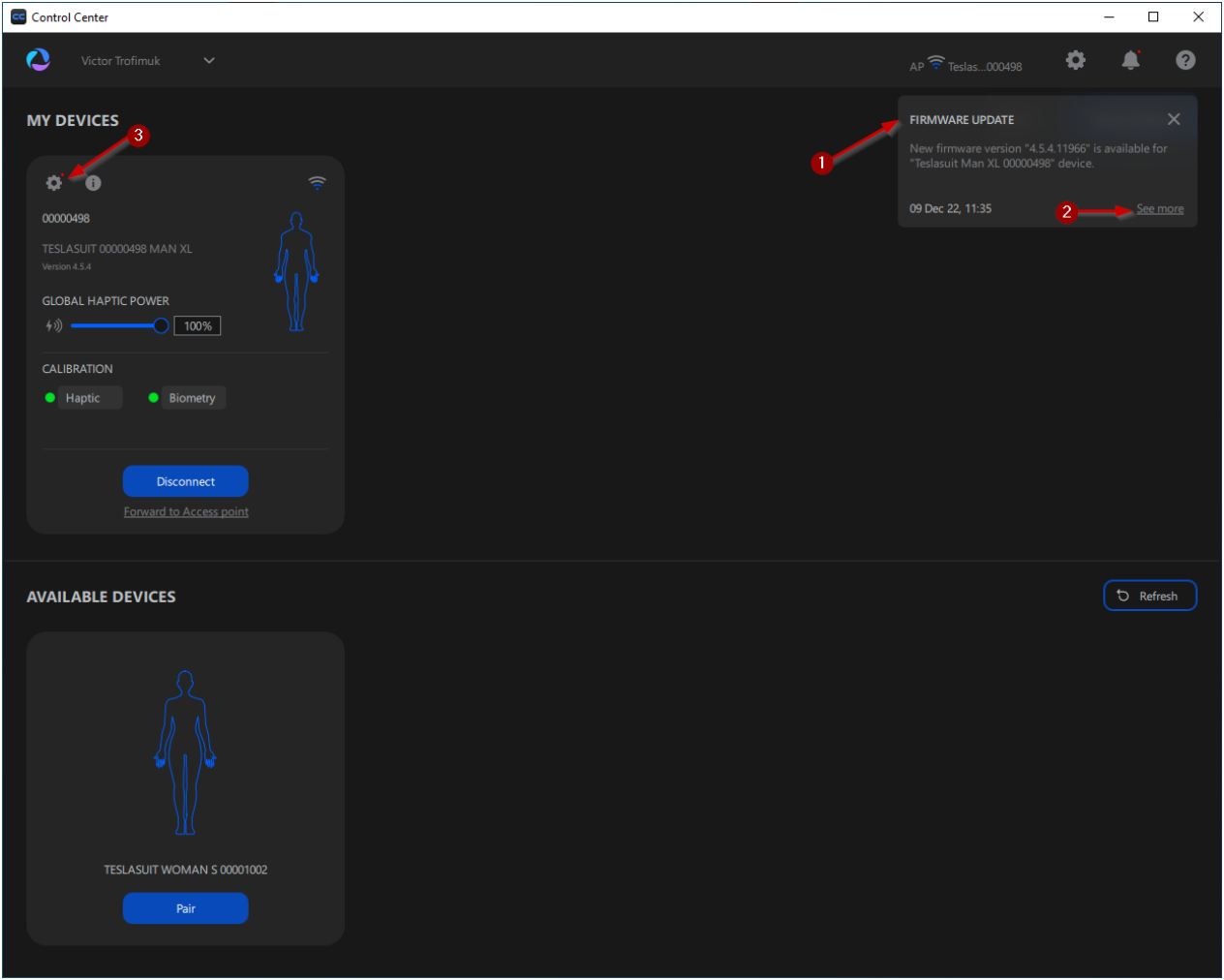
In the notification and on the device card:
- FIRMWARE UPDATE notification — appears when a new firmware version is available.
- See more — opens the update flow from the notification.
- Gear icon — opens DEVICE SETTINGS on the device's card, where the update is started.
To update:
- When a new firmware version becomes available, you receive an in-app FIRMWARE UPDATE notification. To proceed, either click See more (lower-right of the notification) or click the gear icon on the device's card.
- The DEVICE SETTINGS window opens. Under the DEVICE UPDATE section you see the latest available firmware version.
- Press the update button to execute. From that point the new firmware is automatically downloaded and installed onto the Control Unit.
- During the update, follow these rules:
- Do not turn off the Teslasuit device.
- Do not turn off the PC.
- Do not close Control Center.
- After the firmware is installed, reboot the device to continue operation: power it off, wait a few seconds, then power it on.
Software Bundle update#
The Software Bundle — Control Center, Studio, and the APIs — can be updated directly through Control Center. Control Center notifies you when a new version is available, and most of the process runs automatically.
To update:
- When the next version becomes available, you receive an in-app notification. (For release notes for any release, visit Developer Portal → Downloads → Software Bundle.)
- To proceed, either click See more (lower-right) or click the gear icon. The SETTINGS window opens.
- Under the SOFTWARE UPDATES section you see the available CURRENT VERSION. Press the update button to continue.
- Wait for the installer to download, then follow the standard Windows installation procedure.
Warning
After the installer downloads, you must close Control Center to proceed with installing the new Software Bundle version. A notification modal prompts you to do so.
Keeping the Software Bundle up to date brings new features and stability improvements. If you already have any version installed, you can update directly from Control Center's settings; alternatively, Developer Portal → Downloads → Software Bundle lets you obtain any specific version. Online sign-in is required — see Control Center - Launch & Authorization.