
Download & install
Studio ships inside the Software Bundle — a single Windows installer available from the Developer Portal. Control Center, Studio, and the APIs (C API and Python API) install together.
Sign in to the Developer Portal#
To download and use Studio you need an approved account on the Developer Portal at developer.teslasuit.io. If you do not have one, sign up with your details (or with a supported social account) and verify your email address using the instructions sent to you.
Download & install#
- Go to the Downloads page of the Developer Portal.
- In the Software section, download the latest version of the Software Bundle.
- Run the installation file and click Run.
- In the Windows Defender SmartScreen window, click More info, confirm the publisher name is Deep Divers Ltd, then click Run anyway.
- In the User Account Control dialog, click Yes to allow the installer to make changes.
- In the Teslasuit Studio Setup dialog, click Next.
- Select the installation folder, then click Next. The default location is
C:\Program Files\Teslasuit\Studio\. - Read the License Agreement. If you accept it, select I accept the license, then click Next.
- Click Install.
- When installation is complete, click Finish. The Control Center and Studio shortcuts appear on the desktop.
Info
The recommended display resolution is 1920×1080 to ensure correct operation of Studio. See Studio - Requirements.
First launch#
Launch Studio from the desktop shortcut (or from studio.exe in the installation directory). On first run, make sure your device is paired, connected, and calibrated via Control Center - Overview.
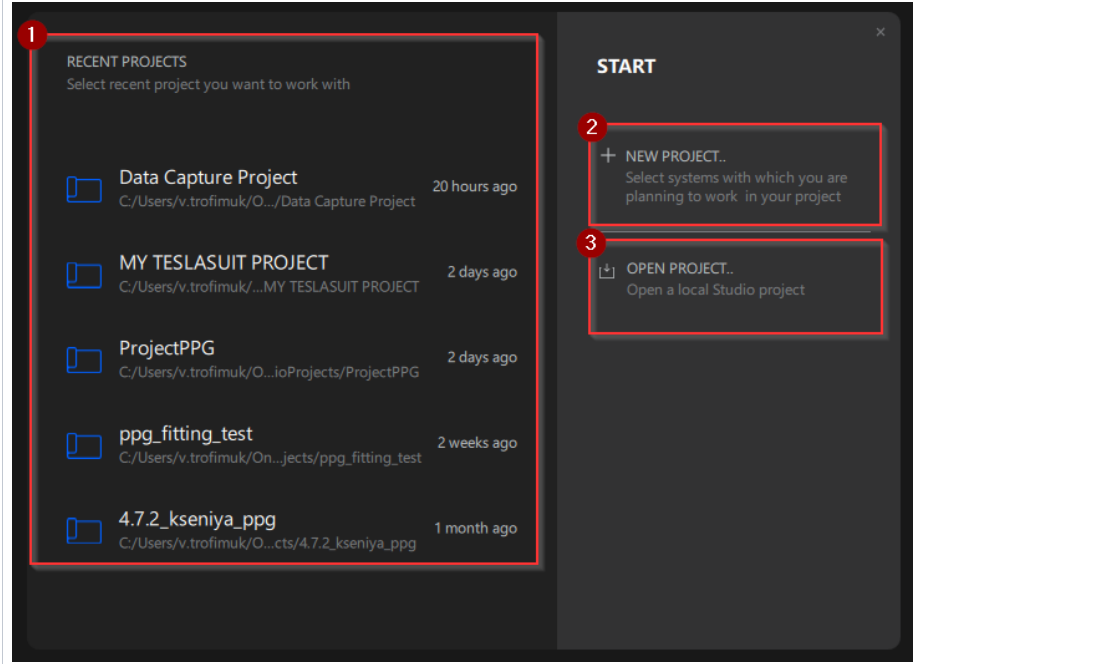
Continue to Studio - Interface.